Copying Cells
Relative addressing question: Suppose cell K14 contains the formula =B4 / D7. If cell K14 is copied to cell M30, what formula does M30 contain? Did you get =D20 / F23?
Absolute addressing question: Suppose cell K14 contains the formula =B4 / $D$7. If cell K14 is copied to cell M30, what formula does M30 contain? Did you get =D20 / $D$7?
Mixed addressing question: Suppose cell K14 contains the formula =$B4 / D$7. If cell K14 is copied to cell M30, what formula does M30 contain? Did you get =$B20 / F$7?
Create a chart
1. Select the cells that contain the data that you want to appear in the chart.
If you want the column and row labels to appear in the chart, include the cells that contain them in the selection.
2. Click Chart Wizard, which guides you through the steps for creating an embedded chart on a worksheet or modifying an existing chart.
3. Follow the instructions in the Chart Wizard.
Create a chart from nonadjacent selections
1. Select the first group of cells that contain the data you want to include.
2. While holding down CTRL, select any additional cell groups you want to include.
The nonadjacent selections must form a rectangle.
3. Click Chart Wizard.
4. Follow the instructions in the Chart Wizard.
|
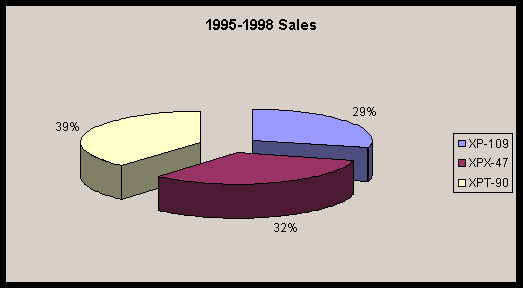
Computer Sales 1995-1998 |
|||||
|
Model |
1995 |
1996 |
1997 |
1998 |
Total |
|
XP-109 |
$ 34,678.00 |
$ 59,870.00 |
$ 102,345.00 |
$ 117,900.00 |
$ 314,793.00 |
|
XPX-47 |
$ 56,245.00 |
$ 49,807.00 |
$ 77,809.00 |
$ 165,102.00 |
$ 348,963.00 |
|
XPT-90 |
$ 78,040.00 |
$ 53,109.00 |
$ 89,234.00 |
$ 197,050.00 |
$ 417,433.00 |
|
$168,963.00 |
$162,786.00 |
$ 269,388.00 |
$ 480,052.00 |
$1,081,189.00 |
|
Create a Web page from worksheet data or a chart
1. Click a cell in the data that you want to convert to a Web page.
2. On the File menu, click Save As HTML.
Using the Clipboard
The clipboard can be used to insert charts and tables created in Excel into any Word document. Simply cut or copy a chart or table into the Clipboard then paste into a Word document.
The IF function makes a choice among two formulas
=If(Question, trueFormula, falseFormula)
if the answer to the Question is TRUE use the trueFormula; otherwise use the falseFormula.
Example:
=if(B5>=70,"Pass","Fail")
Place this formula in any cell other than B5 (say E8). Enter a number in cell B5. If the number entered is 70 or more then E8 will contain the word "Pass." If B5 contains a number less than 70 then E8 will contain the word "Fail."
Example:
=if(B5>=70,B5^2,0)
Place this formula in any cell other than B5 (say E8). Enter a number in cell B5. If the number entered is 70 or more then E8 will contain the square of the number in cell B5. If B5 contains a number less than 70 then E8 will contain zero.
The SUM function
To sum up a range of cell, simply select the range and click the Sum button S on the Standard toolbar. This function is written =SUM(rangeOfCellsGoesHere).
Example:
=SUM(A1:A5)
Place this formula in cell D4. Enter numbers in cells A1 through A5. Cell D5 contains the sum of the numbers in cells A1 through A5.