Homework 3 (50 points)

Due at lecture on April 19 (no exceptions)

Name_______________________________________ TA________________________________

Directions: Staple this as a cover sheet for homework 1.

  1. Creating a schedule on a web page using tables (15 points)
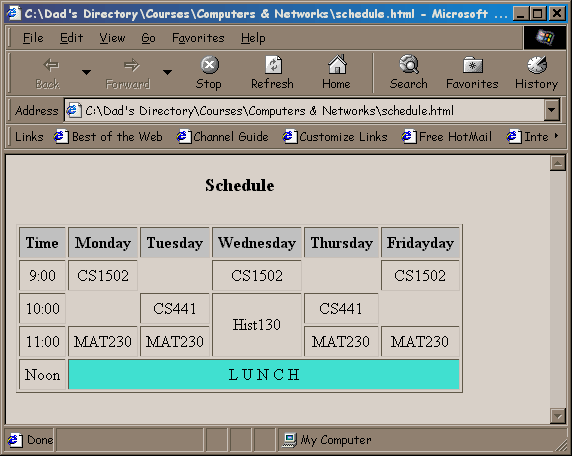
    In class we discussed the <table>, <tr> and <td> tags. We built a course schedule in hourly increments like the one below. Don't forget to look at the handout (tables) on the class web page.
  2. Create your course schedule with half-hour increments instead of hourly increments. Your schedule must cover at least 6 hours and 5 days. Use rowspan and colspan (like the Lunch cell above) to merge adjacent cells and use at least two colors for cells.

  3. Creating a compressed archive with WinZip (10 points)
    Copy the folder called compress from ~cg251251/public/cs110 to the hard drive on your PC. Inside the compress folder you will find two files that together are too large to fit on a diskette. Create a compressed archive on your diskette called shrink.zip, add these two files to this archive. Hand in this archive on a diskette.
  4. Installing a Java Applet in a web page (10 points)
    Copy the files billsClock.class and java.gif in ~cg251251/public/cs110/clock to your html directory. Install this applet in the same web page as the schedule produced in activity 1. Using the parameters

<applet code=billsClock.class width=150 height=150>

<param name=BGCOLOR value="000000">

<param name=FACECOLOR value="FFFFFF">

<param name=SWEEPCOLOR value="FF0000">

<param name=MINUTECOLOR value="008080">

<param name=HOURCOLOR value="000080">

<param name=TEXTCOLOR value="000000">

<param name=CASECOLOR value="000080">

<param name=TRIMCOLOR value="C0C0C0">

<param name=LOCALONLY value=1>

<param name=LOGOIMAGEURL value="java.gif">

</applet>

  1. Postcript Reader (15 points)
    a) In the class directory find a folder called RPos, copy the zip file contained in RPos to the PC. Unzip and install Rpos (a postcript reader).

    b) Using archie and ftp, retrieve the files tiger.ps and porsche.ps.

    c) Start RPos, open the file tiger.ps then print the tiger from RPos. Repeat for the porsche.ps file.